The Ultimate Setup Guide for Your Folio Touch
Introduction: Tablet keyboard folios have become essential accessories for people who want to turn their tablets into productive, portable workstations. The Folio Touch—an increasingly popular keyboard folio with an integrated trackpad—aims to bridge the gap between laptop-grade typing and tablet convenience. This guide walks through a practical, step-by-step setup, a detailed analysis of the Folio Touch’s features, real-world use cases, pros and cons, a comparison with common alternatives, and a buying guide to help buyers decide whether the Folio Touch matches their needs.
What the Folio Touch Is and Who It’s For
The Folio Touch is a keyboard case designed to add a laptop-like typing experience and a trackpad to a compatible tablet. It typically includes a backlit keyboard, a multi-angle kickstand or hinge, and a trackpad that supports common touch gestures. Buyers who most often consider a Folio Touch are students, mobile professionals, writers, and anyone who wants a compact, carry-everywhere setup without moving to a full laptop. Key buyer concerns include typing comfort, trackpad responsiveness, device protection, compatibility, battery life (for Bluetooth variants), and how seamlessly the accessory integrates with the tablet’s operating system.
Unboxing and Initial Inspection
Before beginning any setup steps, carry out a quick inspection right after unboxing. Confirm that the model matches the tablet size (e.g., 11-inch, 12.9-inch or other variants), and check for these items in the box:
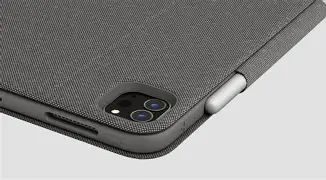
- Folio Touch case with keyboard and trackpad
- Any included charging cable (if the keyboard has a battery)
- Quick-start guide and warranty information
Look for manufacturing defects, loose stitching, or cosmetic damage to hinge areas. Verify that the keyboard surface and trackpad are free of protective films that need to be peeled off before use.
Step-by-Step Setup
1. Determine Connection Type
Folio Touch models connect to tablets in one of two common ways:
- Smart Connector / direct connector: The keyboard draws power and communicates through a dedicated connector on the tablet, eliminating pairing and separate charging in many cases.
- Bluetooth: Some Folio Touch variants use Bluetooth, which requires an initial pairing process and has its own battery to charge.
Check the product label or manual to confirm which method applies to the unit in hand.
2. Physical Attachment
Align the tablet to the case cradle or magnetic attachment area. For magnetic attachments and Smart Connector models, ensure the tablet’s connector pins line up with the case contacts. For cradle-style attachments, make sure all edges snap into place and that the case retains the tablet firmly without forcing it.
3. Power and Pairing
- Smart Connector models: No pairing or charging may be necessary; attach the tablet and the operating system should recognize the keyboard and trackpad automatically. If the tablet doesn’t register input, remove and re-seat it, and check the connector contacts are clean.
- Bluetooth models: Turn on the Folio Touch, consult the keyboard’s pairing key (often a Bluetooth symbol), enable Bluetooth on the tablet, and select the keyboard from the device list. If the keyboard has a battery, charge it fully before long work sessions.
4. Configure System Settings and Shortcuts
Open the tablet’s settings to configure keyboard and trackpad preferences. Common items to adjust:
- Keyboard layout (language, modifier keys)
- Backlight timeout and brightness (if supported)
- Trackpad pointer speed, tap-to-click, and multi-finger gesture settings
- Shortcut mapping for productivity workflows (copy/paste, app switching)
For tablets running desktop-grade tablet OS (e.g., tablet operating systems that support pointer input), confirm gestures like two-finger scroll, three-finger app switch, and secondary click behave as expected.
5. Test Common Workflows
Before relying on the Folio Touch for important tasks, test these day-to-day scenarios:
- Typing a long document to evaluate key feel and travel
- Using the trackpad to navigate and select text, drag-and-drop, and pinch-zoom
- Switching between tablet and case modes (detaching and reattaching)
- Using keyboard shortcuts for copy, paste, undo, and application switching
Detailed Product Review and Analysis
Design and Build Quality
The Folio Touch typically balances protection with portability. The case outer material often uses a textured fabric or polyurethane that resists light stains and scuffs. The hinge or kickstand design is a core differentiator: a strong, well-engineered hinge lets the tablet sit securely at multiple angles, from steep viewing to near-flat typing positions. Buyers will want to inspect the hinge for wobble and ensure that repeated angle changes don’t loosen the mechanism.
Keyboard Feel and Layout
Typing quality is the make-or-break feature for a keyboard folio. The Folio Touch generally offers scissor-switch keys with a short but defined travel—enough to type comfortably for long sessions while keeping the assembly thin. Full-size keys, sensible spacing, and a row of shortcut keys for brightness, search, or media controls make the device useful for productivity. Backlighting is a useful feature for dim environments; buyers should verify the brightness levels and whether the backlight auto-adjusts or requires manual control.
Discover deals on Electronics — updated daily.
See Deals →Trackpad Usability
A responsive trackpad that supports multi-finger gestures elevates a tablet from a touch device to a laptop-like workspace. The Folio Touch’s trackpad often supports pointer acceleration, tap-to-click, and multi-finger gestures for app switching and context menus. Responsiveness, edge accuracy, and palm rejection are important technical qualities—test dragging, precision selection, and gesture recognition for creative tasks like photo editing or spreadsheet work.
Protection and Port Access
Folio cases aim to protect the tablet from daily bumps and scratches while allowing access to ports, cameras, audio, and buttons. The ideal Folio Touch will have cutouts that do not block speakers or connectors and a raised lip to protect the screen when closed. For users who often carry tablets in backpacks, reinforced corners and a secure closure mechanism matter more than a minimal footprint.
Battery Life and Power Management
Battery considerations depend on the connection type. Smart Connector models draw power from the tablet and therefore don’t add a separate charging routine but do add weight. Bluetooth variants require charging and will have different runtimes depending on backlight usage and trackpad activity. In real-world usage, expect several days of intermittent use on Bluetooth folios if the backlight is off and the device sleeps properly. Look for quick-charge support where available for fast top-ups between meetings.
Software and Firmware
Some Folio Touch models benefit from companion apps that enable firmware updates, remap keys, or change trackpad behavior. Regular firmware updates can improve compatibility with new OS releases and fix bugs. Buyers who operate in mixed-device environments should verify that the vendor provides timely updates and clear documentation for troubleshooting.
Real-World Use Cases
Students and Note-Takers
Students appreciate compact, lightweight setups for lecture halls and libraries. The Folio Touch converts a tablet into a distraction-reduced typing environment for note-taking apps and research. Backlit keys help late-night study, and a steady kickstand is handy for typing while the tablet rests on a desk or lap.
Remote and Hybrid Workers
Remote professionals who travel lightly benefit from the Folio Touch’s portability. It provides a reliable keyboard and trackpad for email, video conference note-taking, and light spreadsheet editing. Where full keyboard ergonomics matter, pairing with an external stand or an external ergonomic keyboard can complement the folio.
Content Creators and Presenters
For writers, bloggers, and presenters, the folio offers a fast setup for preparing and delivering material. The trackpad makes on-the-fly editing and selection easier than touch-only input when manipulating timelines, slides, or multi-column layouts.
Field Work and Point-of-Sale
Professionals in inspections, retail, or appointments who rely on tablets appreciate the added protection and typing convenience. A durable folio that stays attached during transit helps maintain a stable workflow on-site where desk space is limited.
Pros & Cons
- Pros:
- Improves typing speed and accuracy compared with on-screen keyboards
- Integrated trackpad enables precise pointer control and gestures
- Multi-angle kickstand enhances viewing and typing ergonomics
- Often provides screen protection when closed
- Backlighting supports low-light use (on supported models)
- Cons:
- Adds weight and thickness to the tablet, reducing pocketability
- Compatibility can be specific to tablet model and generation
- Some variants require separate charging or Bluetooth pairing
- Key travel may be too shallow for users who prefer laptop-style keys
- Hinges and attachment mechanisms can wear with heavy use
Comparison: Folio Touch vs Common Alternatives
| Feature | Folio Touch | Apple Magic Keyboard / Equivalent | Slim Keyboard Folio (lightweight alternative) |
|---|---|---|---|
| Typing Experience | Scissor switches with short travel; balanced for portable typing | Higher travel, premium feel; often best for long typing sessions | Minimal travel; less comfortable for extended typing |
| Trackpad | Integrated, supports multi-finger gestures | Integrated, highly optimized for the OS | May be absent or small; basic pointer functionality |
| Protection | Good all-around protection with cover and magnetic closure | Good front/back cover; often premium finish | Light protection; focuses on thinness and portability |
| Weight & Bulk | Moderate; adds noticeable weight | Heavier; integrates rigid structure | Lightest option; minimal bulk |
| Best For | Balanced users who need a trackpad and protection | Power users wanting near-laptop feel and integration | Casual users wanting basic typing and lightweight carry |
Buying Guide: What to Consider Before Choosing a Folio Touch
1. Compatibility and Sizing
Double-check the tablet model and generation. Cases are often model-specific—ports, camera cutouts, and connector alignment vary. Buying a mismatched size can block speakers or cameras or fail to attach securely.
2. Connection Type: Smart Connector vs Bluetooth
Decide whether a connector-based model or Bluetooth works better. Connector models usually offer immediate pairing and no separate charging, while Bluetooth models provide greater cross-device flexibility but require charging and pairing. Consider how many devices the keyboard will need to switch between.
3. Keyboard Quality and Layout
Look for full-size keys, a good key spacing, and backlighting if frequently used in dim environments. Confirm language layout (e.g., US, UK, ISO) and the presence of commonly used shortcuts. If possible, test typing on a display unit to evaluate comfort.
Find top-rated Electronics products at great prices.
Shop Amazon →4. Trackpad Performance
Not all trackpads are created equal. Buyers should prioritize responsiveness, gesture support, and size. If precise cursor work is important—editing photos, spreadsheets, or code—choose a larger, more accurate trackpad with good OS integration.
5. Stand and Angle Adjustability
Multiple viewing angles improve ergonomics for reading, watching video, and typing. A hinge that locks firmly without wobble is essential for lap use and mobile work.
6. Protection and Materials
Examine outer materials for durability and resistance to stains or wear. Reinforced corners and raised bezels help protect the tablet during drops and when the folio is closed.
7. Battery Life and Charging
For Bluetooth models, verify the expected battery life under typical use and whether the unit supports quick charging. For connector models, understand any potential battery draw impact on the tablet.
8. Portability vs Ergonomics Trade-off
Consider how the folio will be used most often: as a stationary typing surface or a daily carry. Heavy-duty protection and large batteries add weight, while ultra-thin designs sacrifice typing comfort.
9. Software Support and Warranty
Check whether the manufacturer provides companion apps, firmware updates, and a clear warranty. Good support matters when OS updates affect functionality or when users need remapping tools.
10. Realistic Budgeting
Price often correlates with build quality and feature set. Decide whether features such as a large, premium trackpad or a rugged, reinforced case justify a higher price for the intended use case.
Troubleshooting Tips and Maintenance
Common Issues and Fixes
- Keyboard not responding: Re-seat the tablet, toggle Bluetooth, or restart both devices. Clean Smart Connector pins with a dry, lint-free cloth.
- Trackpad lag: Check for low battery (Bluetooth), reduce background apps, and install firmware updates if available.
- Backlight not working: Verify backlight settings, ensure the keyboard has power or the tablet supports connector power, and consult the manual for backlight control sequences.
Cleaning and Care
Unplug or detach the keyboard before cleaning. Use a soft, slightly damp cloth for the exterior and a dry microfibre cloth for the trackpad. Avoid liquids near seams and connectors. For keys, compressed air can remove debris. Store the folio closed when transporting to minimize dust and scratches.
Conclusion
The Folio Touch is a practical accessory for anyone who needs more productive input from a tablet without sacrificing portability. It brings tactile typing, pointer precision, and a protected carrying solution into one package. Choosing the right variant depends on the tablet model, how often the folio will be switched between devices, and the balance a buyer wants between protection and thinness. For students and mobile professionals who type frequently and want reliable gesture support, the Folio Touch often represents a strong middle ground between ultra-thin folios and heavier, laptop-like keyboards.
When setting up a Folio Touch, careful attention to compatibility, connection type, system configuration, and testing common workflows will ensure a smooth transition from touch-first to keyboard-driven productivity. Regular maintenance and firmware updates will keep the accessory functioning well over time. Ultimately, the best Folio Touch is the one that fits the user’s tablet, typing preferences, and daily routine—delivering a comfortable, efficient bridge between tablet convenience and laptop-style productivity.